CF1 Guidance - New style CF1 only
This guide starts with a quick overview of the key features to help get you up and running / develop a basic understanding, followed by a more detailed breakdown of key areas, including settings you may need to configure as a user. You can find a separate guide for chambers configuration, FAQ's and the table of rates here - CF1 - Chambers Configuration, FAQ's and table of rates
Brief guidance for barristers can be found here - Barrister - Time recording on CF1 cases
Overview / Quick guides
Setting the schedule and adding fee lines
Enhancements
Producing Fee notes
Producing CF1 Forms
Creating / Managing a NEW CF1 Case
To create a CF1 case, the relevant funding type needs to be assigned to the case record. As part of the configuration, the Opus 2 LEX team will recommend that chambers use:
Funding type for the CF1 / Legal aid fees - |  |
Funding type for the IP / Private fees - |  |
NOTE: The funding types specified above are for illustration purposes only, the wording can be determined by chambers
The purpose of these funding types is as follows:
| Producing Fee notes / Draft Fee notes: When producing a fee note, users have the option to select if they are sending the document containing the Private Rates OR the Legal Aid rates. The default option can be shown to 'Based on type' which will look at the funding type of the case. Working with the example funding types above, if the funding was set as Inter Parties then the fee / draft fee note would show the private fee value, which is based on the barristers hourly rate. If the funding type was set as CF1, the fee / draft fee note would show the legal aid values. | 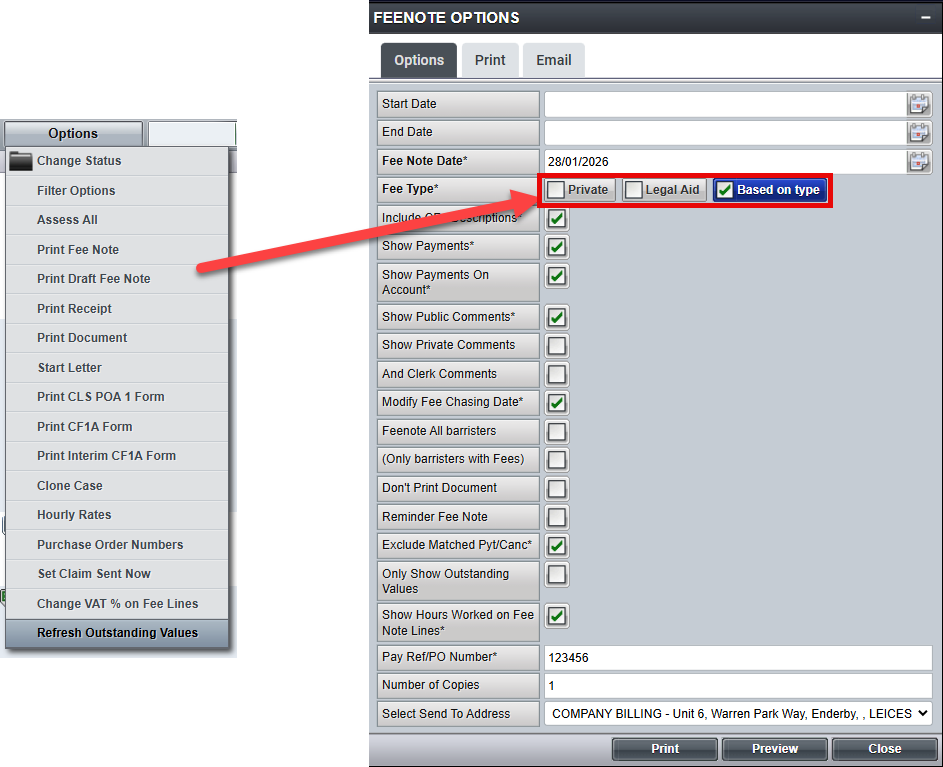 |
| Reporting The Aged debt and Work Done Enhanced reports allow users to select the figures they are reporting on. By default LEX will report based on funding type so unless the report options are amended before generating, the lower fee (Legal Aid Fee) will be reported on, unless the funding is amended to the private funding mentioned above. |
 |
The CF1 case setup will enable the Schedule tab which is where the price list is set for each barrister:
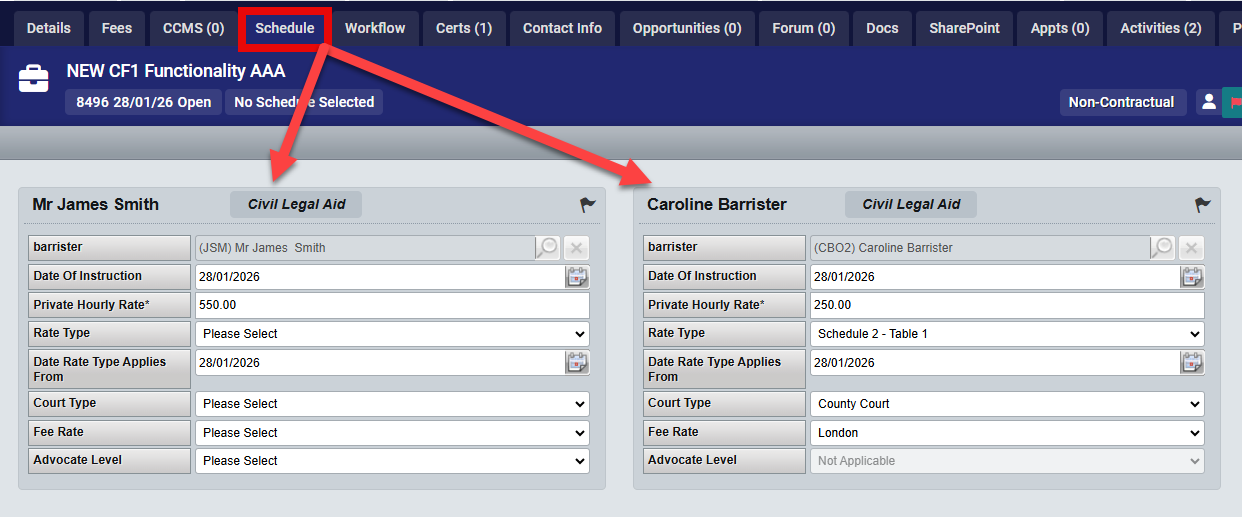
The schedule for each barrister explained: 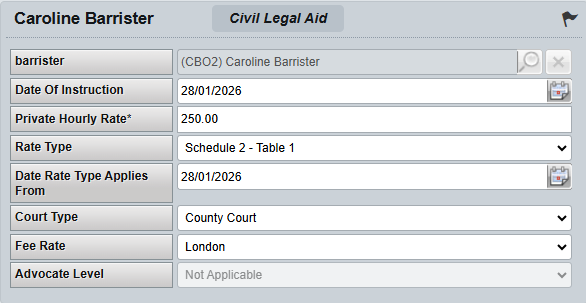 | Private Hourly Rate - This rate is pulled from the Barrister profile as a default on CF1 cases, this can be amended per case |
| Rate Type - This is the highest level of the price list configuration | |
| Court Type - To work in conjunction with the Rate type to prepare the price list. Disallowed combinations won't be selectable here. For example Supreme Court and Court of Appeal won't work with Schedule 2 Table 1. Risk rates doesn't allow any court selection. | |
| Fee Rate - Gives the option of London or Non London | |
| Advocate Level - Selectable on all rate types outside of Schedule 2 Table 1 |
It is recommended these have defaults set in the system configuration but can be changed as required.
Fees Page Layout / Functions
Fee lines take on a new look for CF1 Cases, due to the nature of the funding and background processes, there is much more information available on screen. There are options explained here which allow users to minimise or focus their viewing.
Each CF1 Fee line has 2 description boxes to use when entering a fee. This works with the Funding type fee note options explained earlier. The description in the PRIVATE fee description box will be shown on a PRIVATE fee note, the LEGAL AID only on the LEGAL AID fee note:

Once a fee line has been created and times assigned to the CF1 pop up, the fee line will show all of this information:
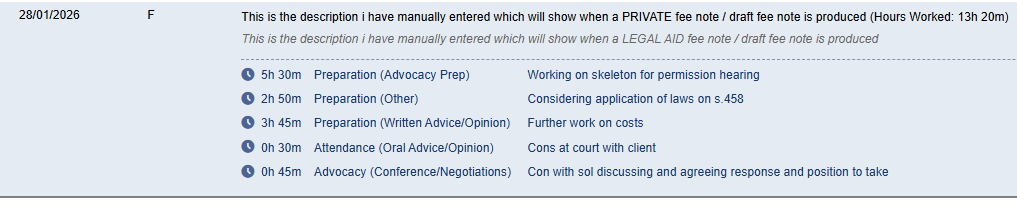 | The Fee descriptions are both showing along with information entered in to the CF1 pop up |
| Along with the fee descriptions for the Private and Legal Aid funding types, the fee line will also show 3 values: Private Rate - Based on the hourly rate of the barrister Legal Aid Rate - Rates are based on the schedule / price list set and the information entered in to the CF1 pop up Interim Rate - Set at 80% of the Legal aid rate for POA | 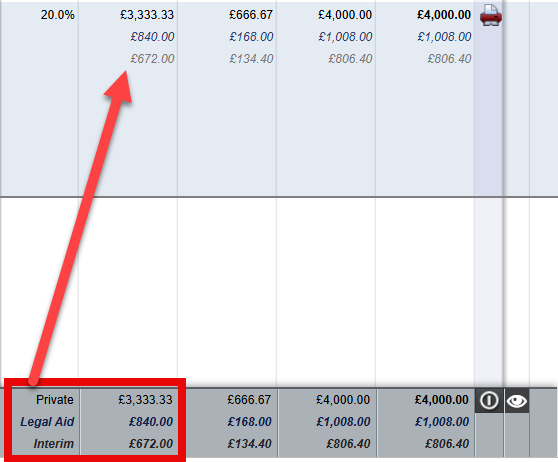 |
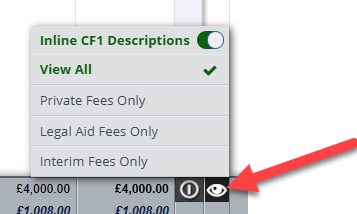 | Using the menu shown here, users can filter to view each set of fees independently or continue to see all fees together. This option allows view of only 1 set of fees at a time or all fees. |
Private Fees only: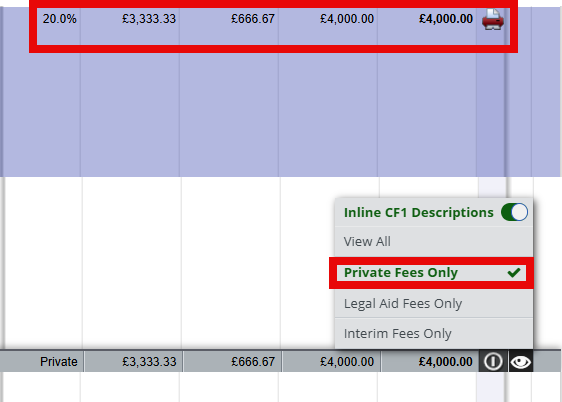 | ||
Legal Aid Fees only: 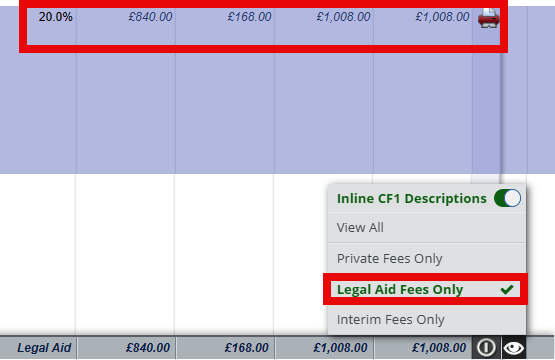 | ||
Interim Fees only: 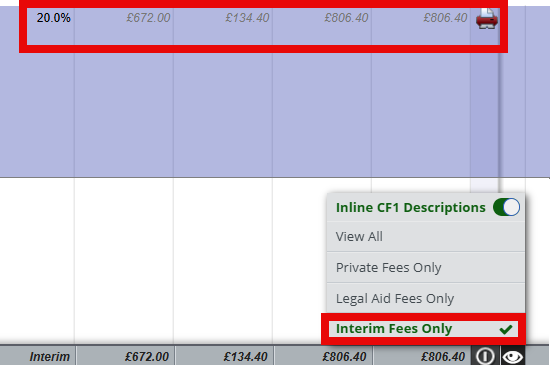 |
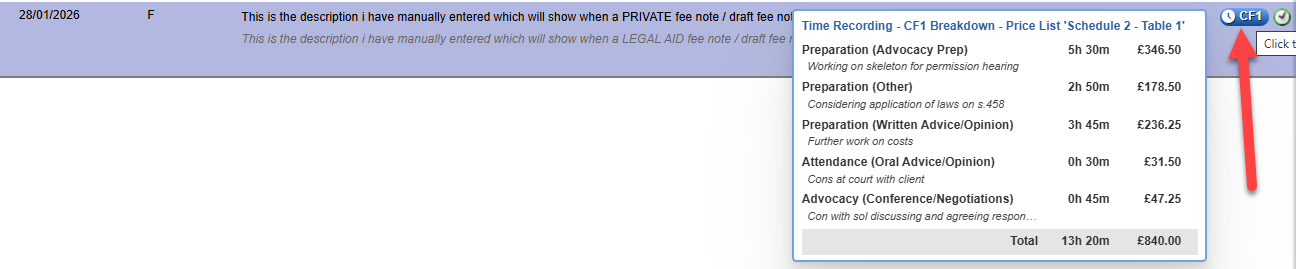
Each fee line can also show the CF1 assignments as part of the existing on screen information. Should users wish to toggle this, there is an option to remove these ad hoc or a system default can be set for all users.

If these have been turned off, they can still be viewed by simply hovering over the CF1 icon for each fee line as shown below:
| Clicking on the CF1 icon will open the CF1 pop up | 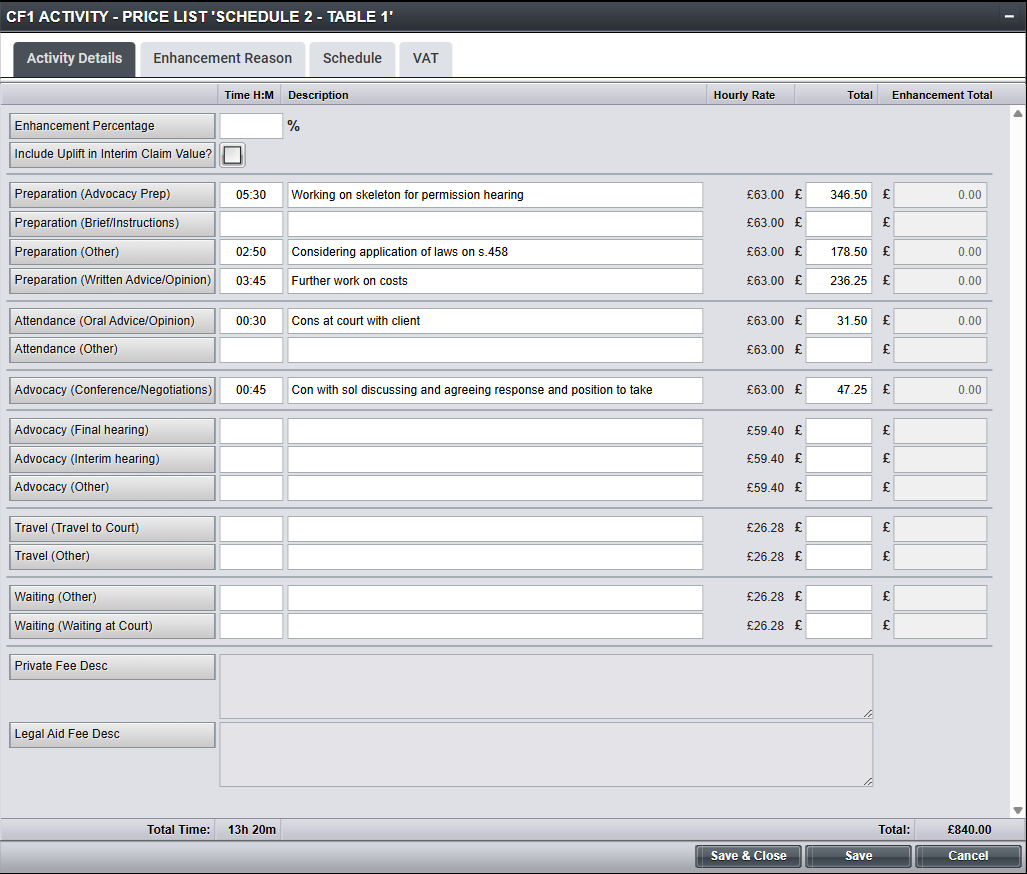 |
Was this article helpful?
That’s Great!
Thank you for your feedback
Sorry! We couldn't be helpful
Thank you for your feedback
Feedback sent
We appreciate your effort and will try to fix the article