UDF and Group Edit(UDFs)
What are User Defined Fields (UDFs)
User defined fields (UDFs) are custom fields that can be added to LEX system records like cases or companies. They provide LEX users with an option to capture and store pieces of information they consider to be important, which would not ordinarily be available using the system’s default fields. They are a key feature and are one of the many flexible configuration options provided by LEX.
Which fields are commonly edited using the UDF and Group Edit?
Within the the contact profile, areas of law and marketing groups are often edited by users within chambers so chambers can quickly edit available options without having to contact Opus2 LEX support. Appointment types can also be edited from here along with opportunity request fields.
Most fields that look like the below can have options edited within the UDF and Group edit but users should always check with the support team before making changes for the first time to ensure the required field should be amended and there are no considerations to be aware of.

Information about case specific UDF's is available here - Case User Defined Fields (UDFs)
What shouldn't I amend / be aware of?
User defined fields can have an impact on how cases behave or how contact records operate.
Appointment types / Hearing types - these can be added easily but will require appointment fee codes to be associated so the diary work transfers correctly to the case record.
Case level information such as Type / Funding / Representation etc are used to assign the workflow to the case. Adding / amending these fields without proper thought can alter how the workflow and automated features operate.
Any field could have a background impact not seen or fully understood by users so always check before making amends for the first time.
Adding / Amending fields
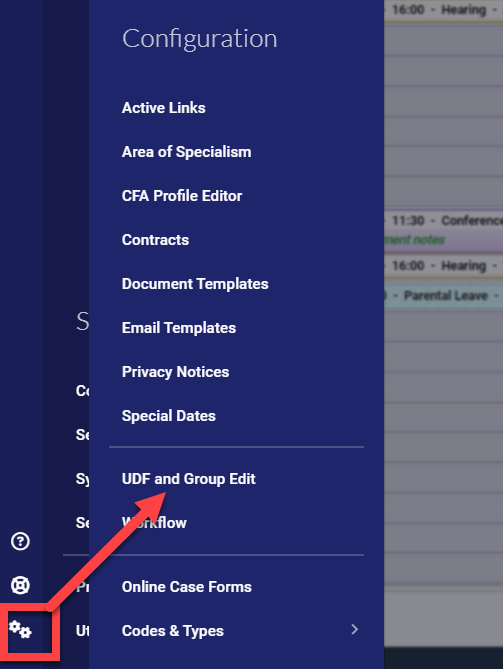
Users security profile will need to allow access to UDF and Group Edit, for those without access contact the LEX support team for assistance.
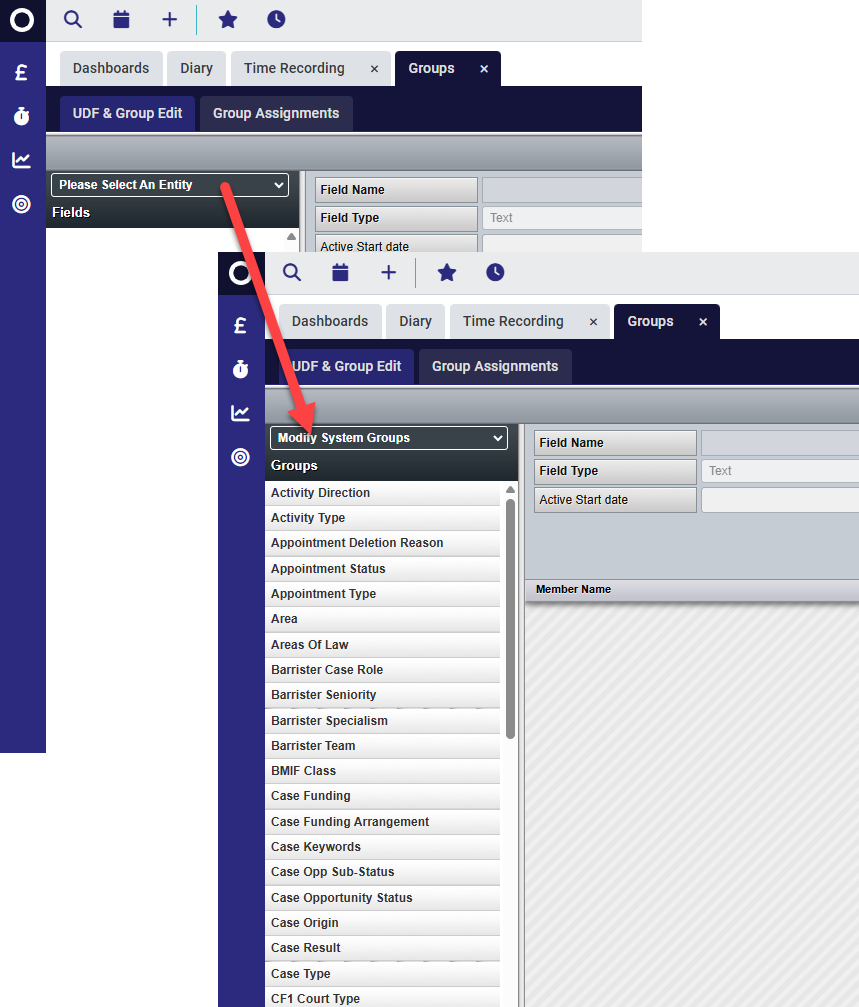
From the drop down menu, select 'Modify System Groups'. This will present a list of all available editable fields.
NOTE - this does not mean all these are freely editable without consequence, check the impact of any changes with our support team before making any amends.
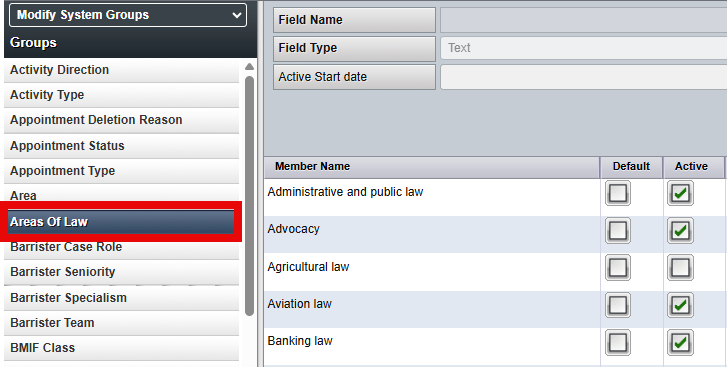
The below example looks at Areas of Law within the contact profile. Each member of this group can be edited or de-activated as required. Making a field inactive just means this option is no longer selectable within the contact profile, the previously assigned data still sits within the contact record.
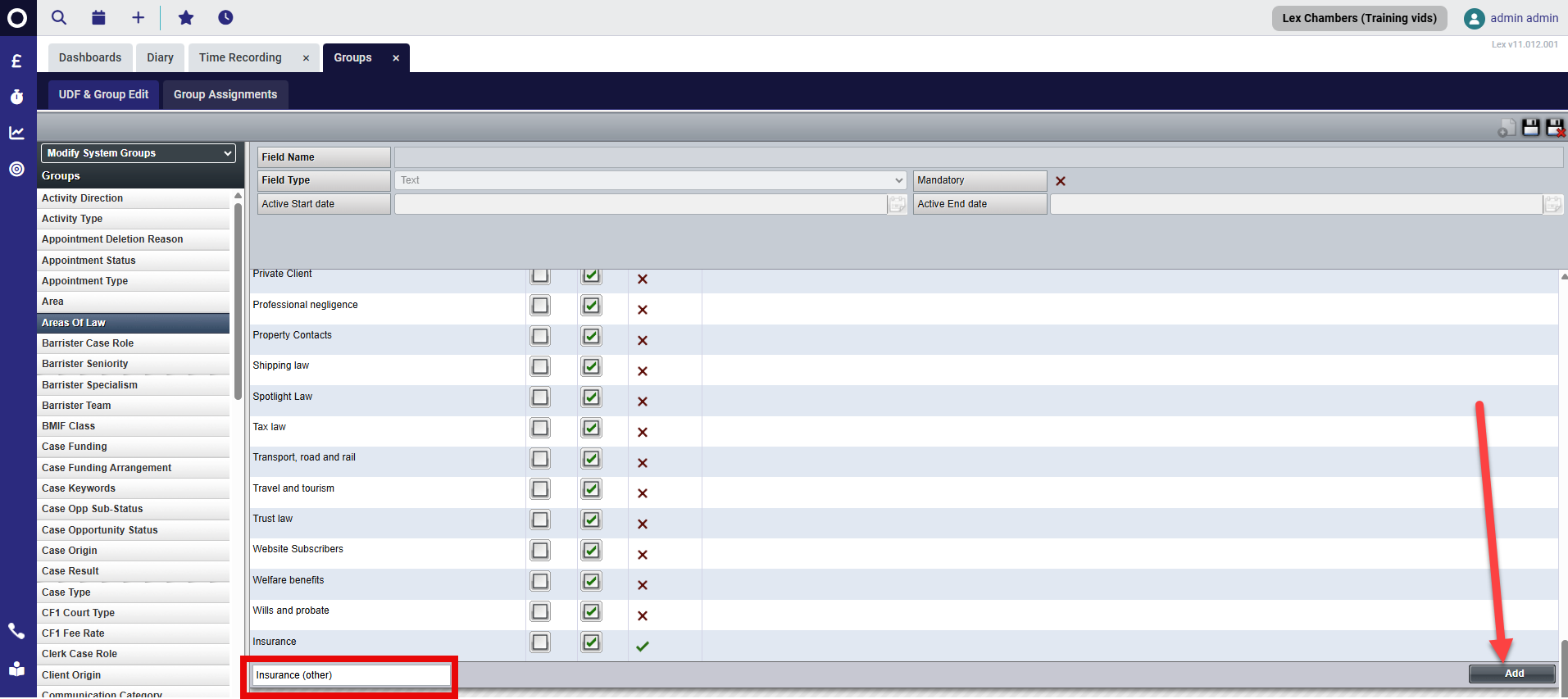
To add a new group member, use the text box at the bottom to enter the required wording, then select 'Add' in the bottom right. As soon as this is added, the item is available to select within the relevant field.
Was this article helpful?
That’s Great!
Thank you for your feedback
Sorry! We couldn't be helpful
Thank you for your feedback
Feedback sent
We appreciate your effort and will try to fix the article