Multi-Stage Commission (Payment Banding): Configuration
| Within LEX V11.014 we have introduced functionality to calculate chambers commission based on payment bands rather than applying a standard percentage for all payments received. | For Example | |
| £0 - £10,000 | 30% | |
| £10,001 - £20,000 | 25% | |
| £20,001 - £50,000 | 15% | |
| £50,001 + | 10% | |
This functionality is enabled via System Options > Reporting Options > Payment Summary Report Options > Use Multi-Stage Commission. Please note, you will also need to enable 'Use Expense Profiling' in the same section. Within this area, you will also be able to select whether the ranges are based on calendar or financial year.
Regardless of whether you use calendar or financial year for the report options, a financial start month MUST be set in Registration Details otherwise the payment summary report will return an error when generating.
Please contact Opus2 LEX support for any assistance required.
Creating profiles for ranges
The first step is to create profiles via System Config > Config > UDF & Group Edit > Multi-Stage Commission Profile.
This stage is just naming the profiles you can configure in the later stages. For example, you could have profiles named Chambers Standard, Silks, Snr Juniors, Juniors, Pupils, etc.
Configuring the profiles
Once the profiles have been named, they can be configured via Reporting > Options > Multi Stage Commission Rates | 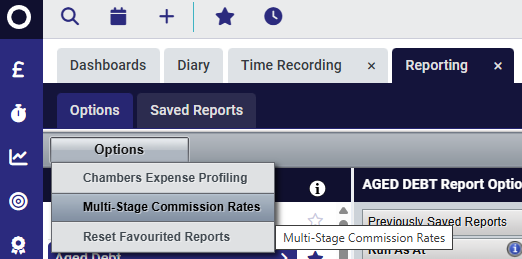 |
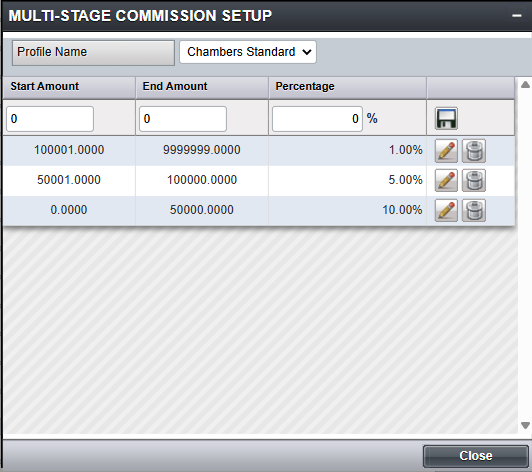
Selecting the above will open the Multi-Stage Commission Setup shown below. Select the relevant Profile Name from the drop down and set the range and percentage, selecting the Save icon to the right of that row to finalise and allow for further entries.
NOTE: If the final band is required to be anything over a specific value, insert a high number in the End Amount, i.e. £9999999:
Allocating profiles to Barrister records
Once the profiles have been created and configured, they can be assigned to individual Barrister records for reporting purposes.
| Assign these via Barrister Details > Options > Multi-Stage Commission Setup: | 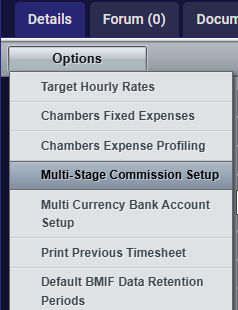 |
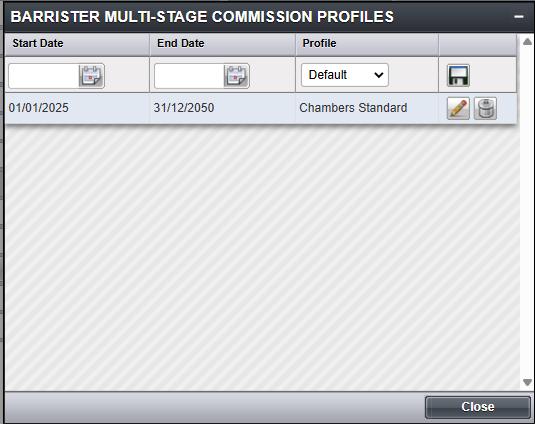
| Here you can set the start and end dates along with the relevant profile, for example: |
 |
Repeat for all Barristers as required. When the profiles are configured and assigned to Barristers, payment summary reports will now reflect the relevant banding with the commission totals for each.
Was this article helpful?
That’s Great!
Thank you for your feedback
Sorry! We couldn't be helpful
Thank you for your feedback
Feedback sent
We appreciate your effort and will try to fix the article