**LEX Connect is currently in the BETA testing phase**
Opus 2 LEX Connect - Diary
Stay on top of your schedule by reviewing existing bookings or creating new ones directly from the app.
Navigation
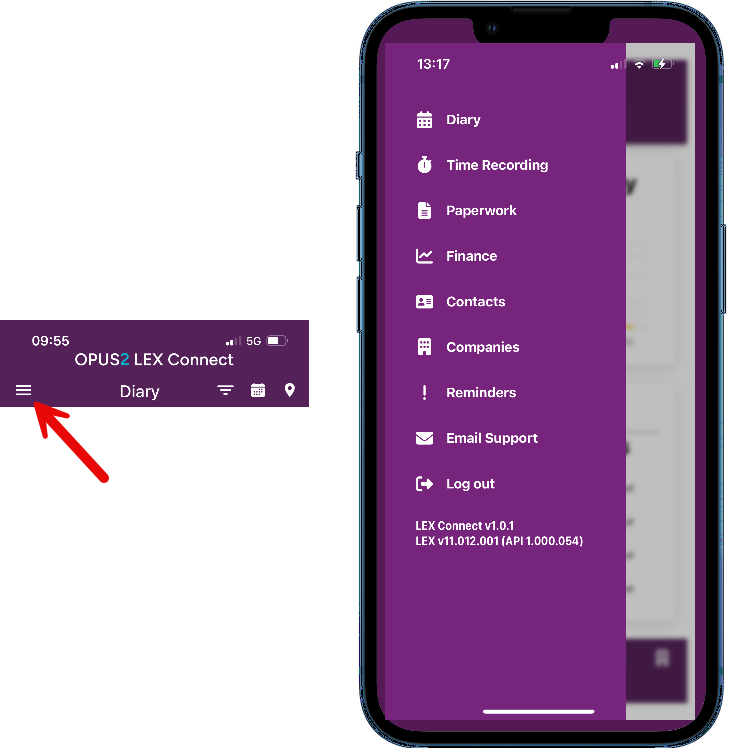
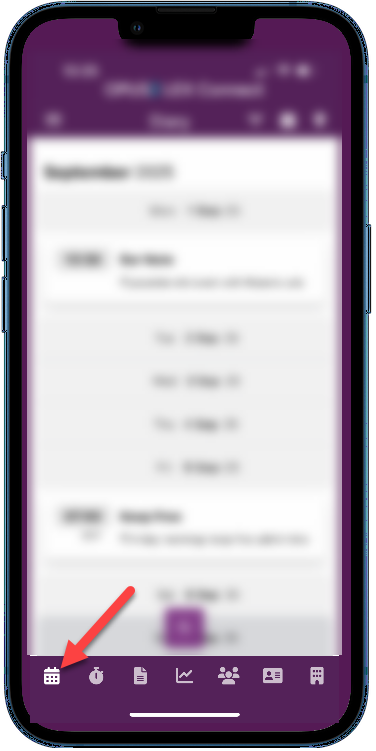
To access the diary, tap the menu icon from any screen in the app to open the full menu and navigate to your desired location. Alternatively in any screen, select the diary icon from the bottom left hand corner.
 |  |
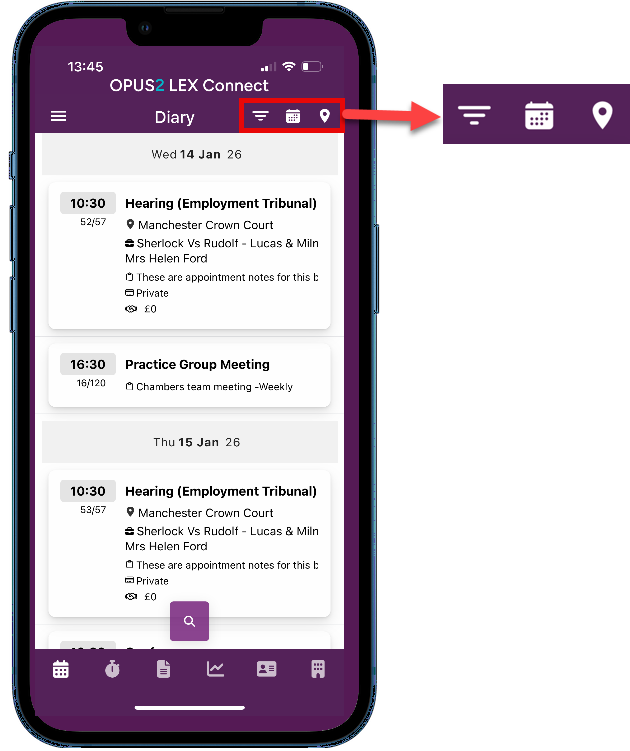 Within the diary users can select from the icons shown above to filter by Appointment type / Date or Location as shown below. Within the diary users can select from the icons shown above to filter by Appointment type / Date or Location as shown below.When filtering by date (shown in the middle below) there is a scroll below which will show the next group of bookings |
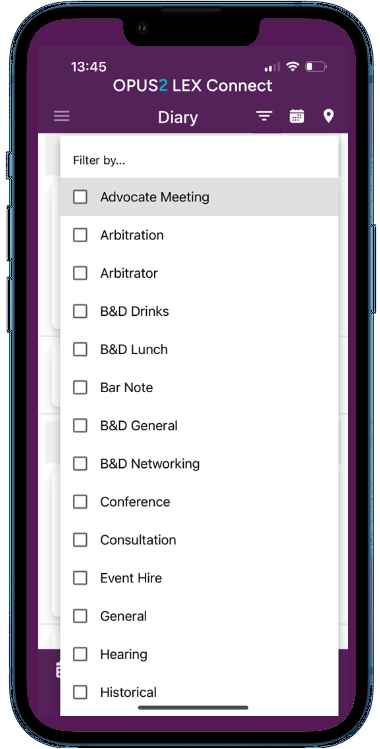 | 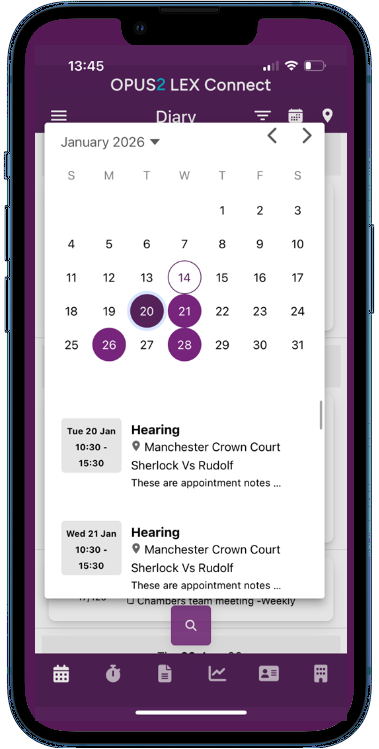 | 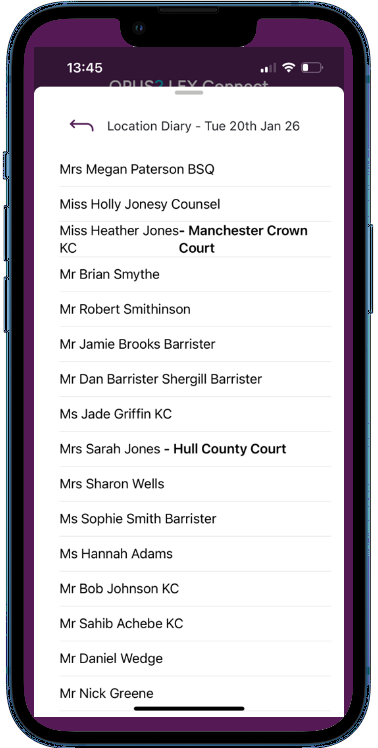 |
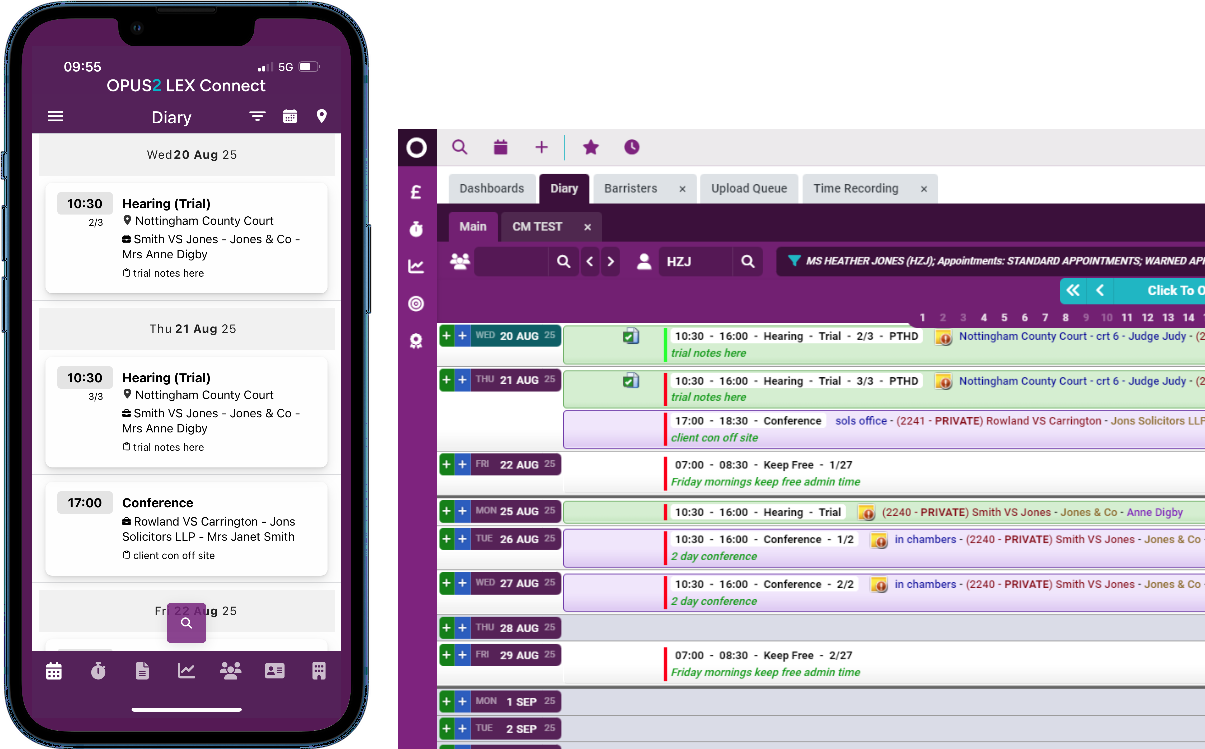
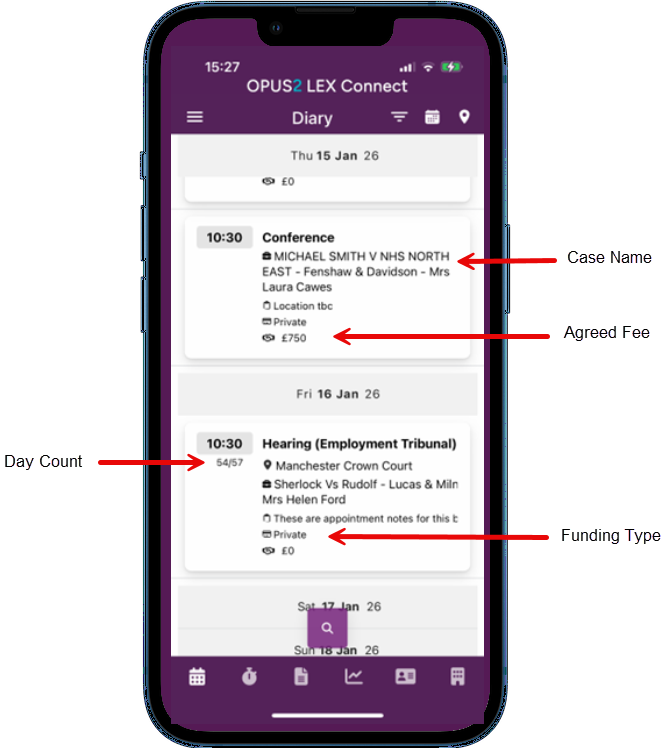 | This image illustrates certain detail from the diary that may not be instantly recognisable from the main desktop application. |
Guidance (Full screen provides the optimal viewing experience)
Enter a new diary booking
Edit a diary booking
Delete a diary booking
TIP: When entering text in the app, you can text as normal using your keyboard or use the dictate function. | 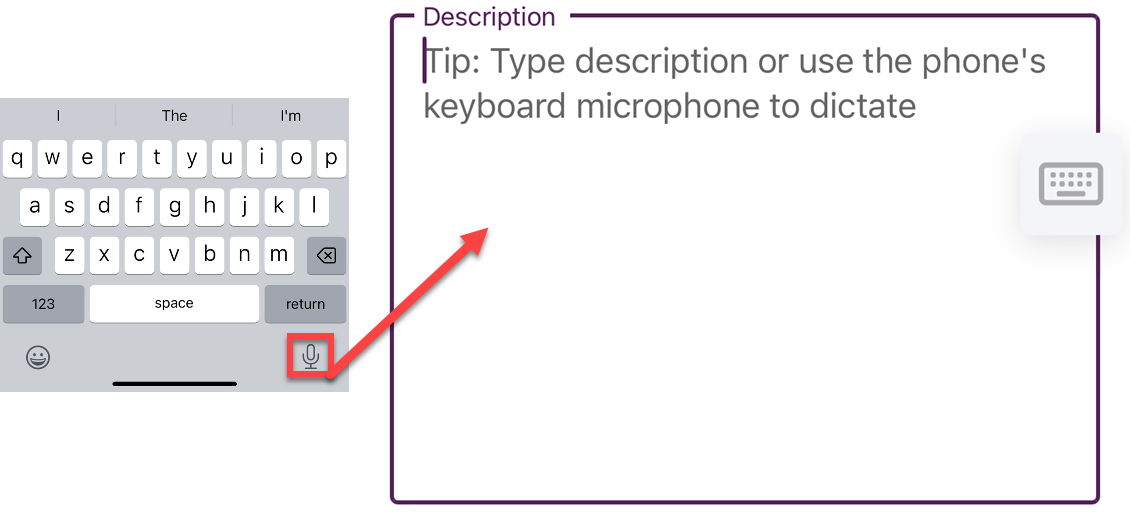 |
Was this article helpful?
That’s Great!
Thank you for your feedback
Sorry! We couldn't be helpful
Thank you for your feedback
Feedback sent
We appreciate your effort and will try to fix the article